What you need, how to start the app and what happens on the first launch.
Requirements
Minimum
Comfortable
System
Windows 10/11, 64-bit, or Linux x86_64 (see below)
Graphics card
NVIDIA RTX 20xx or newer, 8 GB video memory
16 GB; 24 GB for long production shots
Driver
NVIDIA 580 or newer
the latest Studio or Game Ready driver
Memory
32 GB RAM
64 GB or more
Disk
an SSD with room for the project frames
Internet is needed to install the app and its AI models, and to update it.
Linux systems
Linux requires x86_64, glibc 2.28 or newer, and X11. A Wayland session uses XWayland. NVIDIA driver version 580 or newer is required.
Allow approximately 8.2 GiB for the application and its environment, excluding models, plus space for selected models and project frames. Model sizes are shown before download.
Graphics cards and acceleration
The app runs on NVIDIA graphics cards. Two tools also have acceleration: Auto enhance (soft edge and fine detail) and Track. Cleanup and temporal smoothing run without it.
On first use, the app offers to prepare acceleration for the installed graphics card. This setup is performed once.
All of them need the NVIDIA driver 580 or newer (for professional cards, the RTX Enterprise driver of the same branch).
Install
Windows
Download the installer from lamalake.app (Download for Windows) and run it. No administrator rights are needed.
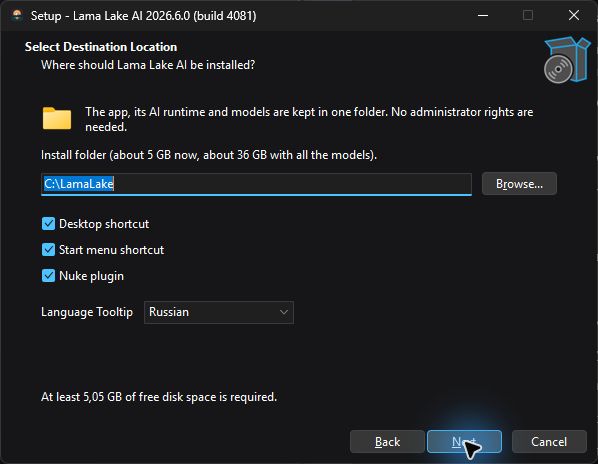
It installs the app into C:\LamaLake by default; you can pick another folder on a local disk.
Installation requires an internet connection and approximately 5 GB of downloads.
It can add a desktop shortcut, a Start menu entry and the Nuke plugin, and it opens .lla project files in the app.
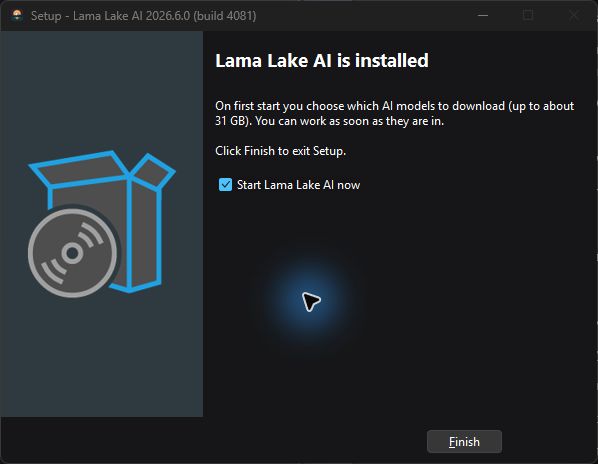
Choosing the installation folder and options on WindowsWindows installation completeChoosing a folder, installing components and completing the Windows installation. Waiting is sped up.
Linux
Install the NVIDIA 580+ driver first. nvidia-smi should show your card and driver version.
Obtain the Linux archive LamaLakeSetup-…-linux-x64.tar.gz and extract it into a new writable folder on a local SSD.
Open a terminal in the extracted LamaLake-AI folder and run ./install.sh.
Review the licence terms and type AGREE. The installer downloads the AI runtime and adds Lama Lake AI to your Applications menu. Start it there or run ./LamaLake.
Run the installer as your normal desktop user, without sudo. Keep internet access available during installation. Press Ctrl+C to stop; running ./install.sh again continues the installation.
At first launch, choose the models to download as described below.
Updating
Windows: at every start the app looks for a newer version. When there is one, an Update button lights up beside the gear at the top right. Press it and confirm: the app downloads only what changed, closes, updates and starts again. When an update also needs a newer AI runtime, the app downloads the new installer instead, runs it in its own window and starts again when it is done.
Linux: extract the new version into a separate folder and run ./install.sh.
Your projects live in their own folders and are not touched by an update.
Removing the app
Windows: open Windows Settings → Apps, find Lama Lake AI and press Uninstall. The app, its runtime and models in its folder are removed; projects are retained. You can also choose whether to remove settings, logs and caches.
Linux: close the app, run ./uninstall.sh from its folder and type REMOVE. The app, downloaded runtime and models in that folder are removed. Projects, profile settings and unlisted user files are retained.
First launch: welcome and models
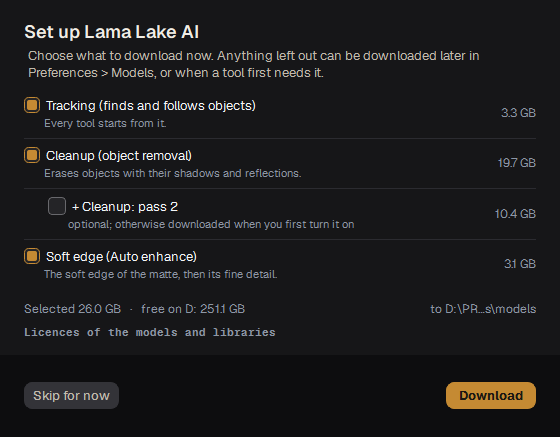
On first launch the app shows the available models: tracking, cleanup (with an optional second pass) and the soft edge. Tick the ones you need and press Download; each is downloaded once and stays on disk. Skip for now downloads nothing: a tool asks to download its model when you first use it.
You can add or remove tools later in Preferences → Models.
The first run of each tool after starting the app takes longer: the tool is loaded onto the graphics card. Later runs start almost at once.
Selecting models on first launch
Check the hardware
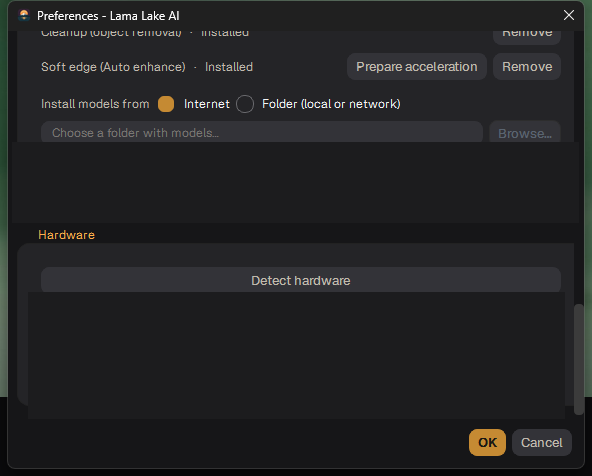
Open Settings → Preferences… and press Detect hardware at the bottom. The app names the graphics card, its video memory, the driver, the RAM and which speed-ups it can use.
Preferences → Hardware after Detect hardware
Note The application requires NVIDIA driver version 580 or newer.
Where things are stored
Projects: next to the source file or sequence folder (see Import).
Settings and logs: in the .lamalake folder of your user profile, for example C:\Users\<you>\.lamalake\logs on Windows or ~/.lamalake/logs on Linux.
Что нужно, как запустить приложение и что происходит при первом запуске.
Требования
Минимум
Комфортно
Система
Windows 10/11, 64-бит, или Linux x86_64 — подробнее ниже
Видеокарта
NVIDIA RTX 20xx или новее, 8 ГБ видеопамяти
16 ГБ; 24 ГБ для длинных продакшн-шотов
Драйвер
NVIDIA 580 или новее
последний Studio или Game Ready
Память
32 ГБ ОЗУ
64 ГБ и больше
Диск
SSD с местом под кадры проекта
Интернет нужен, чтобы установить приложение и его модели, и для обновлений.
Системы Linux
Для Linux необходимы x86_64, glibc 2.28 или новее и X11. В сеансе Wayland используется XWayland. Требуется драйвер NVIDIA версии 580 или новее.
Для приложения и среды требуется около 8,2 GiB дискового пространства без учёта моделей. Предусмотрите дополнительное место для выбранных моделей и кадров проектов. Размер модели указан перед скачиванием.
Видеокарты и ускорение
Приложение работает на видеокартах NVIDIA. У двух инструментов есть ещё и ускорение: Auto enhance (мягкий край и мелкие детали) и Track. Очистка и сглаживание по времени работают без него.
При первом запуске инструмента приложение предлагает подготовить ускорение для установленной видеокарты. Подготовка выполняется один раз.
Для всех нужен драйвер NVIDIA 580 или новее (для профессиональных карт — драйвер RTX Enterprise той же ветки).
Установка
Windows
Скачайте установщик с lamalake.app (Download for Windows) и запустите его. Права администратора не нужны.
По умолчанию приложение ставится в C:\LamaLake; можно выбрать другую папку на локальном диске.
Для установки требуется подключение к интернету и около 5 ГБ для загрузки компонентов.
Установщик может добавить ярлык на рабочий стол, пункт в меню «Пуск» и модуль для Nuke, а файлы проектов .lla будут открываться в приложении.
Выбор папки и параметров установки в WindowsУстановка Windows завершенаВыбор папки, установка компонентов и завершение установки Windows. Ожидание ускорено.
Linux
Сначала установите драйвер NVIDIA 580+. Команда nvidia-smi должна показывать вашу карту и версию драйвера.
Получите Linux-архив LamaLakeSetup-…-linux-x64.tar.gz и распакуйте его в новую доступную для записи папку на локальном SSD.
Откройте терминал в распакованной папке LamaLake-AI и выполните ./install.sh.
Ознакомьтесь с условиями лицензии и введите AGREE. Установщик скачает среду для моделей и добавит Lama Lake AI в меню приложений. Запустите приложение оттуда или командой ./LamaLake.
Запускайте установщик от обычного пользователя, без sudo. Во время установки нужен интернет. Ctrl+C останавливает установку; повторный запуск ./install.sh продолжает её.
При первом запуске выберите модели для загрузки, как описано ниже.
Обновление
Windows: при каждом запуске приложение проверяет, нет ли новой версии. Если есть, справа вверху рядом с шестерёнкой загорается кнопка Update. Нажмите её и подтвердите: приложение скачает только изменившееся, закроется, обновится и запустится снова. Если обновлению нужна и новая среда для моделей, приложение скачает новый установщик, запустит его в своём окне и само запустится, когда тот закончит.
Linux: распакуйте новую версию в отдельную папку и выполните ./install.sh.
Ваши проекты лежат в своих папках, обновление их не трогает.
Удаление
Windows: откройте в Windows Параметры → Приложения, найдите Lama Lake AI и нажмите Удалить. Удаляются приложение, среда и модели в его папке; проекты сохраняются. При удалении можно отдельно выбрать удаление настроек, логов и кэшей.
Linux: закройте приложение, запустите ./uninstall.sh из его папки и введите REMOVE. Удалятся приложение, скачанная среда и модели в этой папке. Проекты, настройки профиля и посторонние пользовательские файлы сохраняются.
Первый запуск: приветствие и модели
При первом запуске приложение показывает список моделей: трекинг, очистка (со вторым проходом по желанию) и мягкий край. Отметьте нужные и нажмите Download; каждая модель скачивается один раз и остаётся на диске. Skip for now ничего не скачивает: инструмент сам предложит скачать модель, когда вы впервые им воспользуетесь.
Добавить или убрать инструменты можно позже в Preferences → Models.
Первый запуск каждого инструмента после старта приложения дольше: инструмент загружается на видеокарту. Следующие запуски стартуют почти сразу.
Выбор моделей при первом запуске
Проверка железа
Откройте Settings → Preferences… и нажмите внизу Detect hardware. Приложение покажет видеокарту, её видеопамять, драйвер, ОЗУ и какие ускорения оно может использовать.
Preferences → Hardware после Detect hardware
Заметка Для работы приложения необходим драйвер NVIDIA версии 580 или новее.
Где что хранится
Проекты: рядом с исходным файлом или папкой секвенции (см. Импорт).
Настройки и логи: в папке .lamalake вашего профиля, например C:\Users\<вы>\.lamalake\logs в Windows или ~/.lamalake/logs в Linux.