Every object you work on is a layer in the Objects panel: a person, a prop, the sky. A layer holds the prompts you gave it, its Hard matte from tracking and its Soft from Auto enhance.
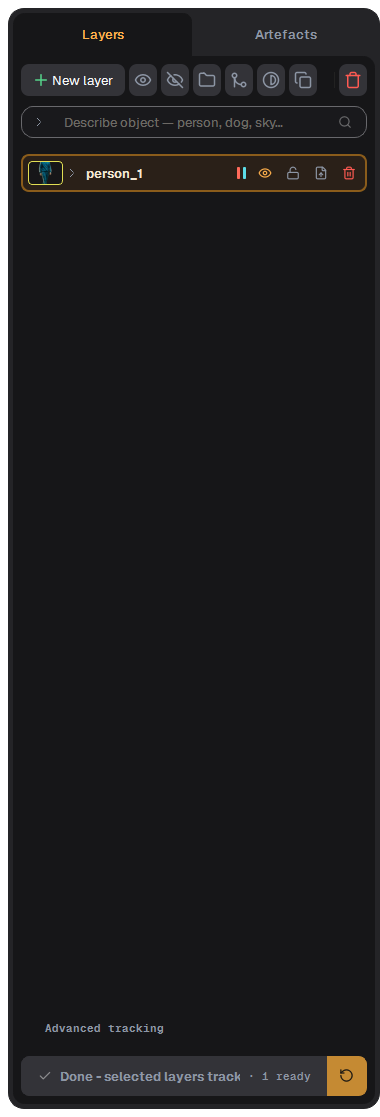
The Objects panel with layers
New layer and text search
New layer adds an empty layer. Then give it prompts in the viewer: see Track.
Text search: type what to find into Describe object — person, dog, sky… and press Enter. The search looks at the current frame. With nothing selected, every object the phrase finds becomes its own layer. With a layer selected, every object it finds goes into that layer. If several layers are selected, the phrase is searched inside each of them.
Searching for person, selecting a range and tracking the layer. Playback is sped up.
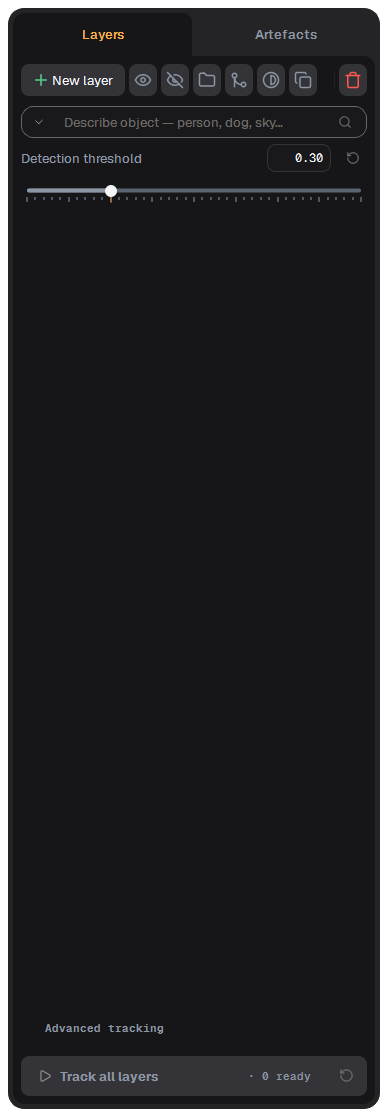
The small arrow on the left of the field opens the search settings. Detection threshold sets how strict the text search is: lower finds more candidates (and more false hits), higher only confident matches.
Search settings: Detection threshold
The layer card
Each card shows a thumbnail, the name and, on the right:
Button
What it does
Lanes (two bars)
Which mattes the layer has on disk. Hold the mouse over it for the list.
Eye
Hide or show the layer. Hidden layers are skipped by Track and other jobs.
Lock
Lock the layer against edits.
Import
Load an external mask for this layer (for example from another tool).
Bin
Delete the layer (or all selected layers).
Click a card to select it, Ctrl+click to add more, Del deletes the selected layers.
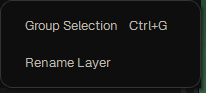
Double-click the name, or right-click → Rename Layer, to rename.
The layer context menu
Merge, group, invert, duplicate
The buttons over the list work on the selected layers:
Show all / Hide all.
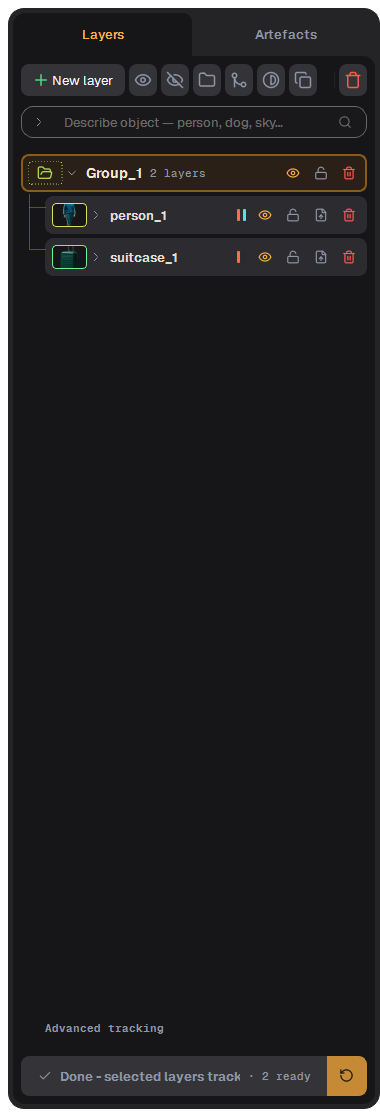
Group (Ctrl+G): puts the layers into a folder. A folder acts as one merged layer for the jobs, while each child stays editable. Grouping is non-destructive.
Merge: joins the selected layers into one layer (union of the masks). This is final.
Invert: makes a new layer from the inverse of the selected layer's mask.
Duplicate: a full copy with its own masks and prompts, so you can try something without risk.
Delete all (red bin).
Select the person and the suitcase, then press Group. Both layers go into a folder.The new folder with both layers inside
Artefacts tab
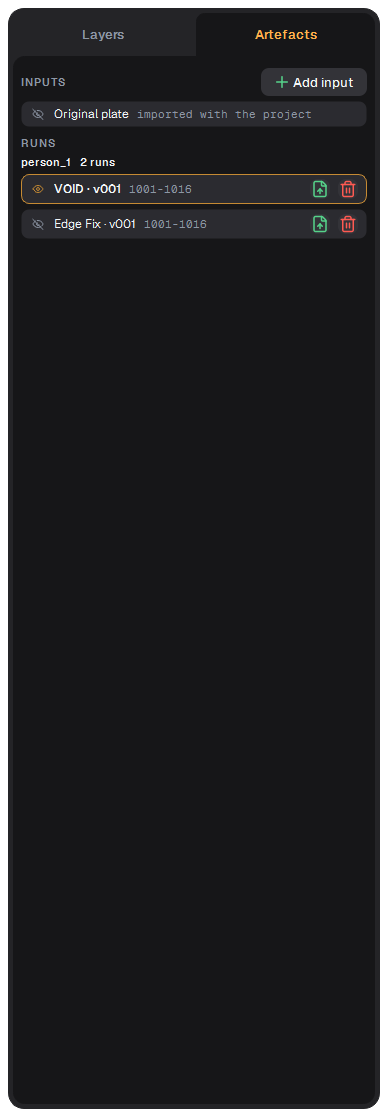
The second tab collects the results of Cleanup. Original plate is the plate as imported; under each layer are its cleanup runs. Click a run to show it in the viewer instead of the plate.
The Artefacts tab: the cleanup run and Edge Fix
Слои
Каждый объект, с которым вы работаете, — это слой в панели Objects: человек, реквизит, небо. В слое хранятся ваши подсказки, его Hard-маска из трекинга и Soft из Auto enhance.
Панель Objects со слоями
Новый слой и поиск по тексту
New layer добавляет пустой слой. Затем дайте ему подсказки во вьюере: см. Трекинг.
Поиск по тексту: напишите, что найти, в поле Describe object — person, dog, sky… и нажмите Enter. Поиск смотрит текущий кадр. Если ничего не выделено, каждый найденный объект становится своим слоем. Если выделен слой, все найденные объекты попадают в него. Если выделено несколько слоёв, фраза ищется в каждом из них.
Поиск person, выбор диапазона и трекинг слоя. Видео ускорено.
Стрелка в поле поиска открывает настройки поиска. Detection threshold задаёт строгость поиска: ниже — больше кандидатов (и больше ложных), выше — только уверенные совпадения.
Настройки поиска: Detection threshold
Карточка слоя
На карточке миниатюра, имя и справа:
Кнопка
Что делает
Дорожки (две полоски)
Какие маски слоя есть на диске. Наведите мышь — будет список.
Глаз
Скрыть или показать слой. Скрытые слои пропускаются трекингом и другими задачами.
Замок
Защитить слой от изменений.
Импорт
Загрузить для слоя внешнюю маску (например, из другой программы).
Корзина
Удалить слой (или все выбранные).
Щелчок по карточке выбирает её, Ctrl+щелчок добавляет ещё, Del удаляет выбранные слои.
Двойной щелчок по имени или правый щелчок → Rename Layer — переименовать.
Контекстное меню слоя
Объединение, группы, инверсия, дубликат
Кнопки над списком работают с выбранными слоями:
Show all / Hide all — показать / скрыть все.
Group (Ctrl+G): кладёт слои в папку. Для задач папка работает как один объединённый слой, а каждый слой внутри остаётся редактируемым. Исходные слои остаются доступны для редактирования.
Merge: сливает выбранные слои в один (объединение масок). Это окончательно.
Invert: создаёт новый слой из инверсии маски выбранного слоя.
Duplicate: полная копия со своими масками и подсказками — можно пробовать без риска.
Delete all (красная корзина).
Выбираем человека и чемодан и жмём Group. Оба слоя попадают в папку.Новая папка с обоими слоями внутри
Вкладка Artefacts
На второй вкладке собраны результаты Cleanup. Original plate — плейт как есть после импорта; под каждым слоем его прогоны cleanup. Щёлкните по прогону, чтобы показать его во вьюере вместо плейта.