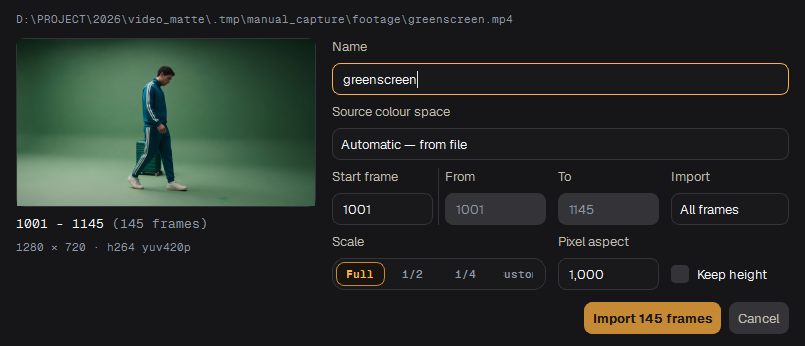
When you bring a video or an image sequence into the app, the import window asks for the project name, the first frame number, the colour space and the size. Then the frames are extracted and the project opens.
The import window
What you can import
Video: MOV, MP4, MKV.
Image sequences: EXR, PNG, TIFF, JPG. Drop the folder or one of its frames. Missing frame numbers are reported.
Drop the file onto the window, use Browse files on the home screen, or Open Project… for an existing project.
The fields
Field
What it means
Name
The project name. By default the file name.
Start frame
The number of the first frame. It comes from the file names of a sequence, from Nuke when you import from there, or 1001 by default. The note to the right says where it came from.
Colour
How the source colours are read. By the file's tags works for most videos; pick the camera's log space for log footage. The field to the right is what the picture is shown and processed in.
Scale
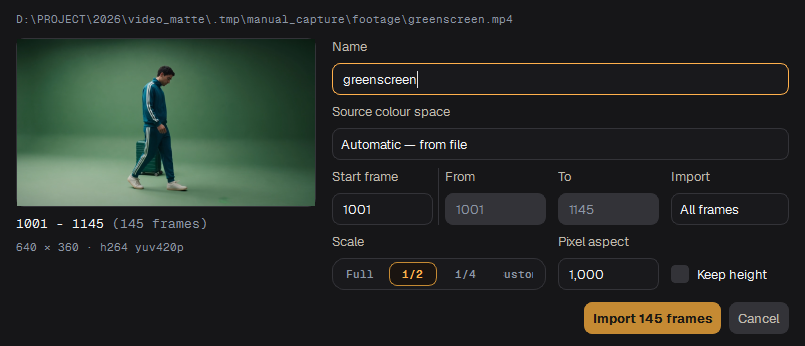
Full, 1/2, 1/4 or Custom width. The line under it shows the result size.
Pixel aspect
For anamorphic plates. Keep height stretches the width instead of squeezing the height.
Scale set to 1/2: the result line shows 640 × 360
Tip Work on a half-size copy of a 4K plate to try things out quickly, and import at full size for the final run.
Importing
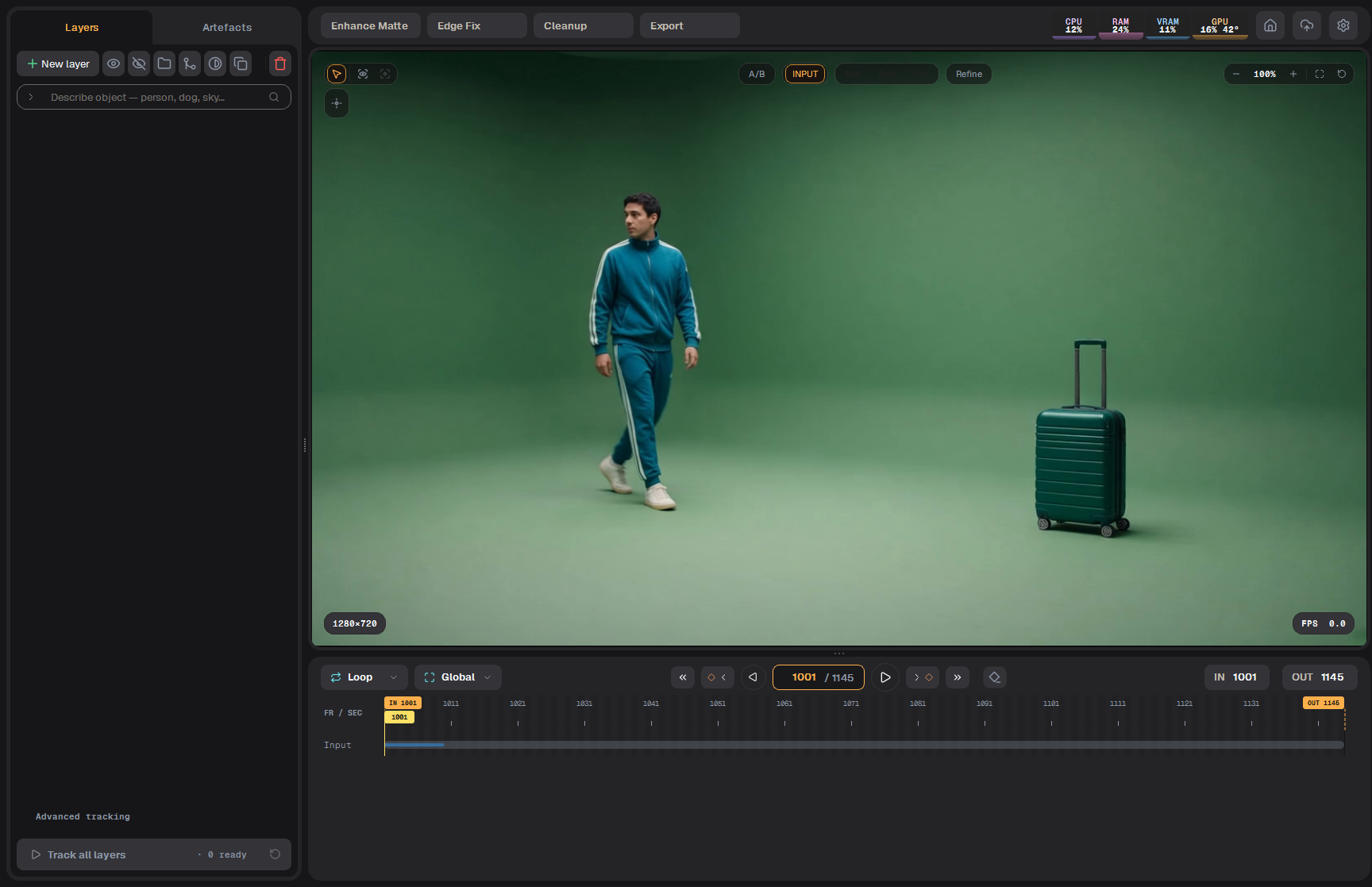
Press Import. The project opens at once and shows "Extracting frames…" until the frames are ready.
Switching the scale, then importing a short clip. The project opens while the frames are extracted.The new project right after import
Where the project lives
The project is created next to the source file or sequence folder. Its location is determined automatically during import.
Colour
Frames are converted for the AI tools, but your original colour is kept for export. A plate imported as log comes back as log in Nuke.
Импорт материала
Когда вы добавляете видео или секвенцию, окно импорта спрашивает название проекта, номер первого кадра, цветовое пространство и размер. Затем кадры извлекаются и проект открывается.
Окно импорта
Что можно импортировать
Видео: MOV, MP4, MKV.
Секвенции: EXR, PNG, TIFF, JPG. Перетащите папку или один из кадров. О пропущенных номерах кадров приложение сообщит.
Перетащите файл в окно, нажмите Browse files на главном экране или Open Project… для готового проекта.
Поля
Поле
Что значит
Name
Название проекта. По умолчанию — имя файла.
Start frame
Номер первого кадра. Берётся из имён файлов секвенции, из Nuke при импорте оттуда или 1001 по умолчанию. Подпись справа говорит, откуда он взят.
Colour
Как читать цвета исходника. By the file's tags подходит для большинства видео; для лог-материала выберите лог-пространство камеры. Поле справа — в чём картинка показывается и обрабатывается.
Scale
Full, 1/2, 1/4 или своя ширина (Custom). Строка под ним показывает итоговый размер.
Pixel aspect
Для анаморфных плейтов. Keep height растягивает ширину, а не сжимает высоту.
Scale = 1/2: строка результата показывает 640 × 360
Совет Чтобы быстро попробовать, работайте с копией 4K-плейта в половинном размере, а для финального прогона импортируйте в полном.
Импорт
Нажмите Import. Проект открывается сразу и показывает «Extracting frames…», пока кадры не готовы.
Смена масштаба и импорт короткого клипа. Проект открывается, пока кадры извлекаются. Видео ускорено.Новый проект сразу после импорта
Где лежит проект
Проект создаётся рядом с исходным файлом или папкой секвенции. Его расположение определяется автоматически при импорте.
Цвет
Для ИИ-инструментов кадры конвертируются, но исходный цвет сохраняется для экспорта. Плейт, импортированный в логе, вернётся в Nuke в логе.