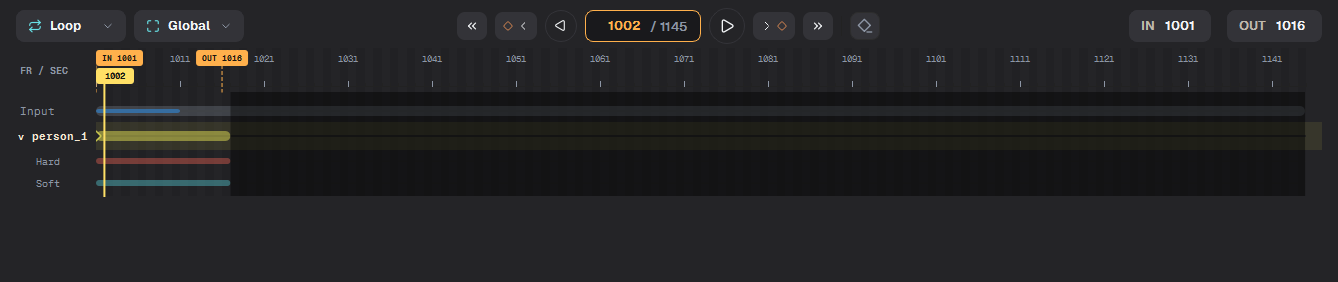
The timeline at the bottom plays the clip and holds the IN/OUT range. Most jobs work on IN/OUT; Export also offers the whole range.
The timeline
Playback
Action
Key
Button
Play forward / backward
L / J
▷ / ◁
Stop
K
One frame back / forward
← / →
First / last frame
« / »
Previous / next key
◇‹ / ›◇
Type a frame number into the frame box to jump there.
Playing, stopping and stepping frame by frame with the arrow keys.
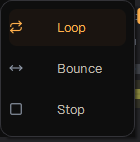
Loop ▾ sets what happens at the end of the range: Loop, Bounce (back and forth) or Stop.
Playback mode menu
IN/OUT range
The IN and OUT flags mark the frames a job works on: Track, Auto enhance, Cleanup, Edge Fix and Export.
SET IN / SET OUT or I / O set them at the current frame.
Shift+click on the ruler sets IN, Ctrl+click sets OUT. Right-click gives the same and Clear IN / OUT.
Alt+I, Alt+O clear one flag, Alt+U clears both.
Switching the timeline to Global, then setting IN and OUT with the buttons.
Global or In/Out fit
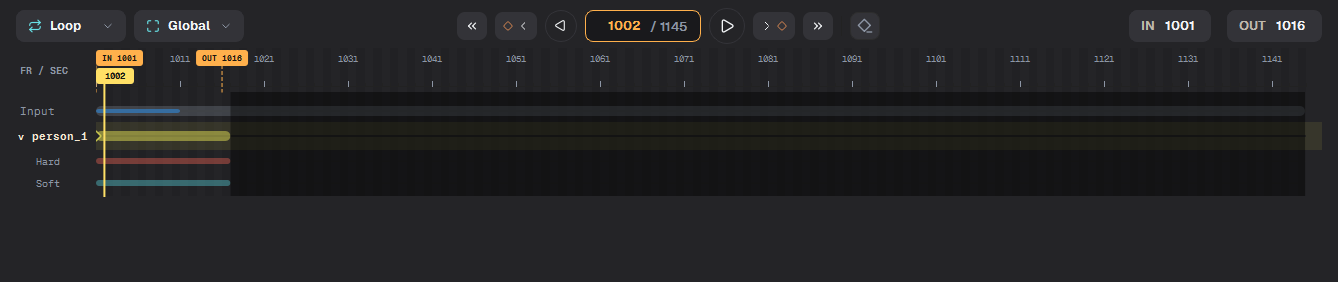
In/Out ▾ chooses what the ruler shows: Global is the whole clip, In/Out zooms the ruler to the range.
Global fit: the whole clip with the IN/OUT range marked
Keys
Diamonds on the ruler are keys: frames where you placed prompts or marks. The ◇‹ and ›◇ buttons jump between them. The eraser button next to the play mode deletes the manual key on the current frame of the unlocked layers; automatic keys are kept.
Tip Before running a long shot, set a short IN/OUT of 10–20 hard frames, run, check, then widen the range. Check the result after extending the range and running again.
Таймлайн и воспроизведение
Таймлайн внизу воспроизводит клип и хранит диапазон IN/OUT. Большинство задач работают в диапазоне IN/OUT; в Export можно выбрать и весь диапазон.
Таймлайн
Воспроизведение
Действие
Клавиша
Кнопка
Вперёд / назад
L / J
▷ / ◁
Стоп
K
Кадр назад / вперёд
← / →
Первый / последний кадр
« / »
Предыдущий / следующий ключ
◇‹ / ›◇
Введите номер кадра в поле кадра, чтобы перейти на него.
Воспроизведение вперёд, остановка и воспроизведение назад.
Loop ▾ задаёт, что происходит в конце диапазона: Loop (по кругу), Bounce (туда-обратно) или Stop.
Меню режима воспроизведения
Диапазон IN/OUT
Флажки IN и OUT отмечают кадры, с которыми работает задача: Track, Auto enhance, Cleanup, Edge Fix и Export.
SET IN / SET OUT или I / O ставят их на текущий кадр.
Shift+щелчок по линейке ставит IN, Ctrl+щелчок — OUT. Правый щелчок даёт то же и Clear IN / OUT.
Alt+I, Alt+O убирают один флажок, Alt+U — оба.
Таймлайн переключается в Global, затем IN и OUT ставятся кнопками.
Масштаб Global или In/Out
In/Out ▾ выбирает, что показывает линейка: Global — весь клип, In/Out — только диапазон.
Global: весь клип с отмеченным диапазоном IN/OUT
Ключи
Ромбики на линейке — ключи: кадры, где вы ставили подсказки или пометки. Кнопки ◇‹ и ›◇ прыгают между ними. Кнопка с ластиком рядом с режимом воспроизведения удаляет ручной ключ на текущем кадре у незаблокированных слоёв; автоматические ключи остаются.
Совет Перед длинным шотом поставьте короткий IN/OUT на 10–20 сложных кадров, запустите, проверьте, потом расширьте диапазон. После расширения диапазона проверьте результат повторного запуска.