Track finds an object on one frame and follows it through the IN/OUT range. The result is the layer's Hard matte.
Telling the app what to track
Select a layer (or add one with New layer) and give it a prompt on any frame. Open the prompt tools with the second button on the left of the viewer.
Tool
How
Positive point
Click on the object. Add more points on parts it missed.
Negative point
Click on what should not be part of the object.
Find object in rectangle
Drag a box around the object. One rectangle per layer; drawing a new one moves the search to the current frame.
Text
Type what it is in the Objects panel (see Layers).
After each prompt the mask on the current frame updates within a second or two.
Two positive points on the person and a negative point on the green beside him.Find object in rectangle: a box around the suitcase.
Tip If the app finds two separate things, it says so ("This search found 2 objects"), and Track follows both in this layer. Put a negative point on the one you don't want, or add a positive point on the one you do.
Ctrl+Z undoes the last prompt. The bin tool (or Del) deletes selected points.
The eye tool at the top hides the prompts and outlines.
Track all or selected
Press Track all layers at the bottom of the Objects panel. If some layers are selected, the button reads Track selected layers and tracks only those.
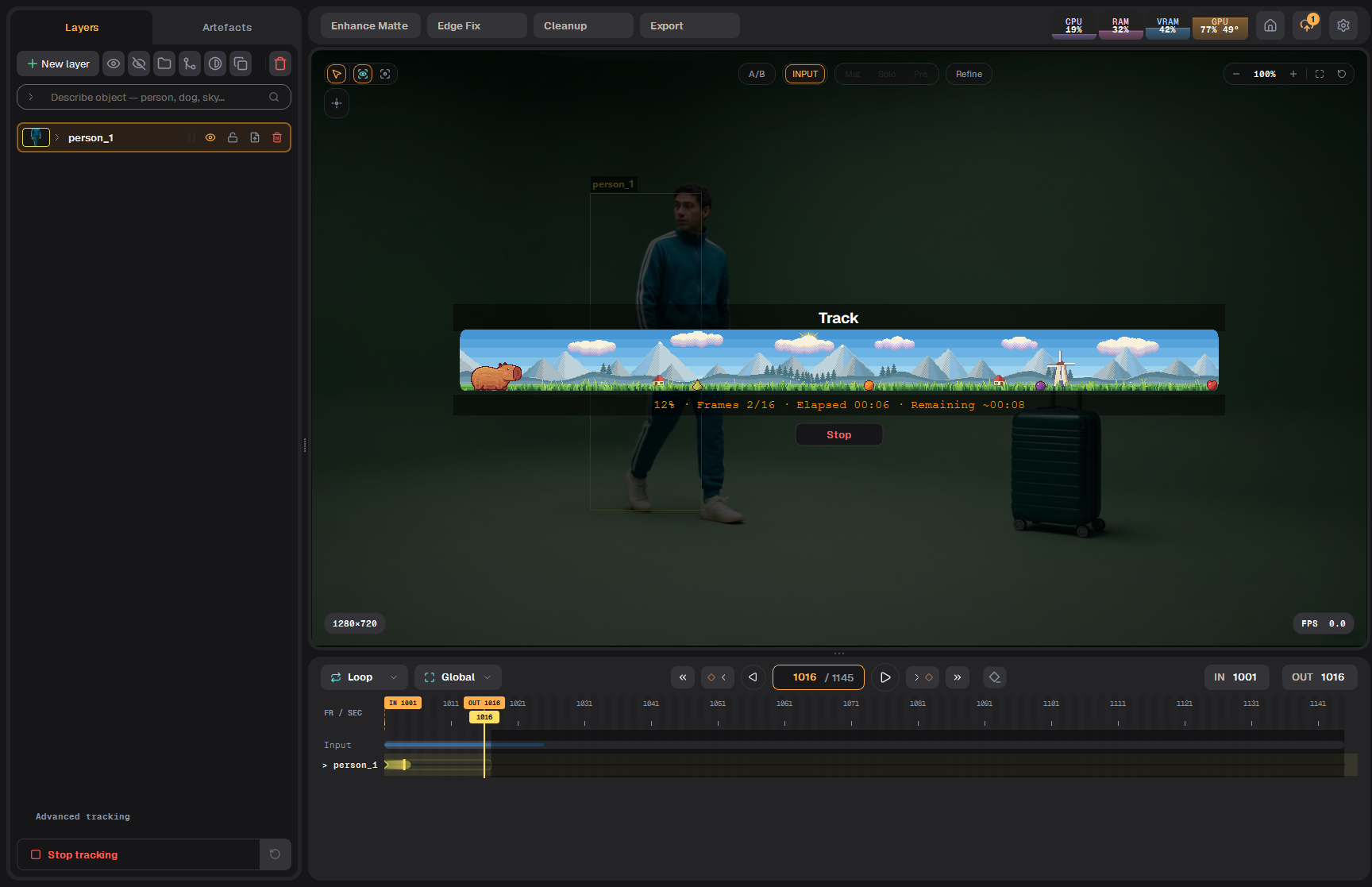
Tracking: the progress bar over the picture
Hidden and locked layers are skipped, even when selected.
When everything is tracked the button reads Done.
Continue vs re-track: the main button only fills frames that have no mask yet and recomputes frames affected by changed keys. The round-arrow button beside it tracks the whole range again from scratch and replaces the masks (it asks first).
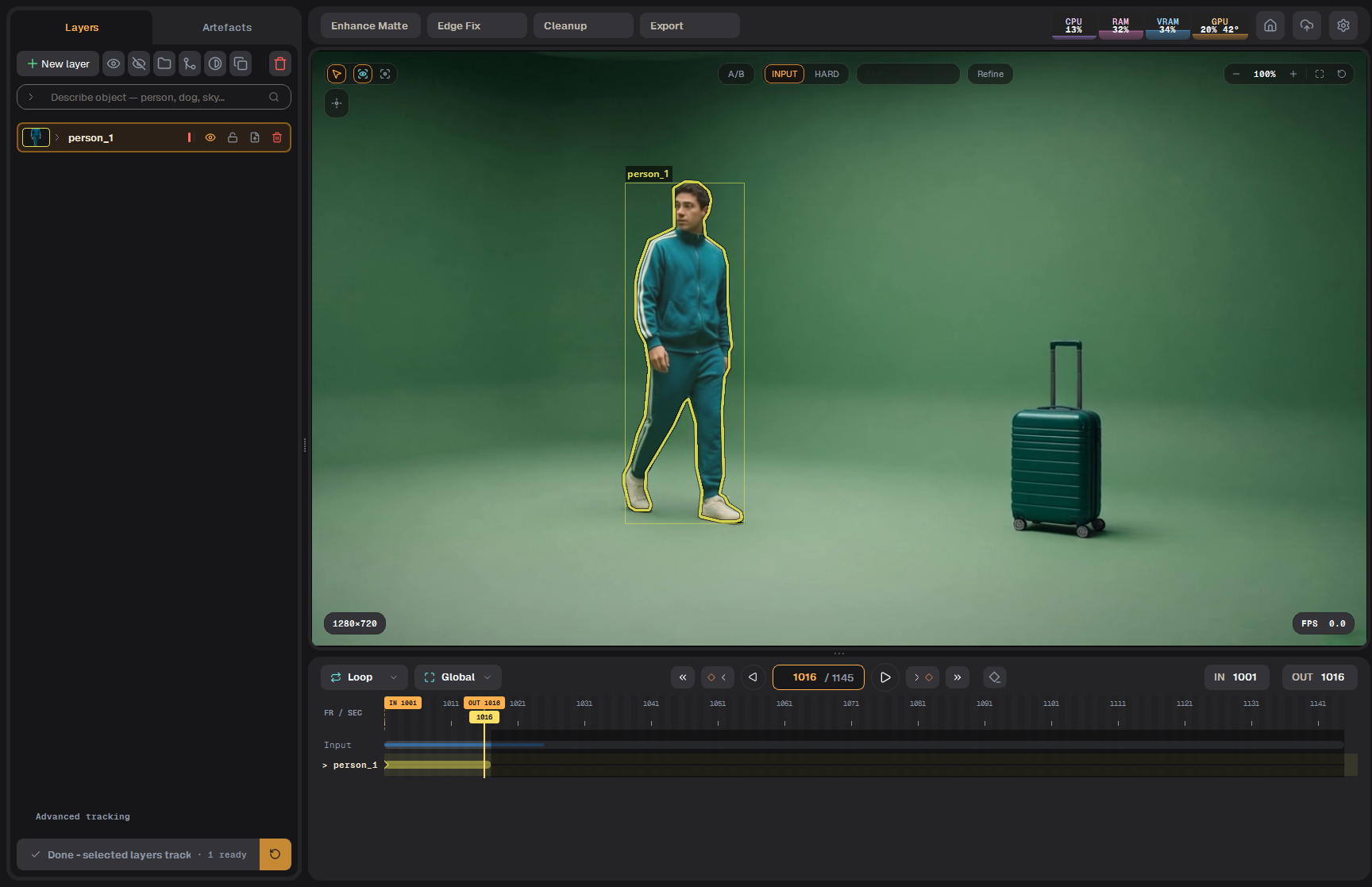
After tracking: the mask follows the man
Correcting the track
When the mask goes wrong on some frame, go to that frame, add a point (or a negative point) there and press the Track button again. That frame becomes a key, and only the frames it affects are redone.
Search settings
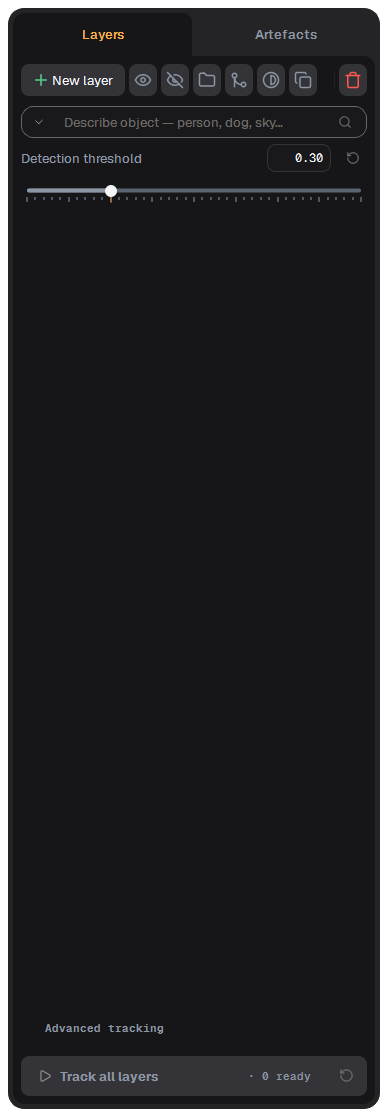
The arrow at the right of the search field opens Detection threshold (default 0.50). Lower it if a text search finds nothing; raise it if it picks up too many objects. Under Advanced tracking, Two-pass track can be switched on or off; it is on by default. Other propagation settings are automatic.
Search settings: Detection threshold
Трекинг (Track)
Трекинг находит объект на одном кадре и ведёт его по диапазону IN/OUT. Результат — Hard-маска слоя.
Как сказать приложению, что трекать
Выберите слой (или добавьте через New layer) и дайте ему подсказку на любом кадре. Инструменты подсказок — вторая кнопка слева от вьюера.
Инструмент
Как
Положительная точка
Щёлкните по объекту. Добавьте точки на части, которые он пропустил.
Отрицательная точка
Щёлкните по тому, что не должно входить в объект.
Find object in rectangle
Обведите объект рамкой. Одна рамка на слой; новая рамка переносит поиск на текущий кадр.
После каждой подсказки маска на текущем кадре обновляется за секунду-две.
Две положительные точки на человеке и отрицательная точка на зелёном фоне рядом с ним.Find object in rectangle: рамка вокруг чемодана.
Совет Если приложение нашло две отдельные вещи, оно об этом скажет («This search found 2 objects»), и трекинг поведёт обе в этом слое. Поставьте отрицательную точку на ненужную или положительную — на нужную.
Ctrl+Z отменяет последнюю подсказку. Инструмент-корзина (или Del) удаляет выбранные точки.
Инструмент-глаз сверху прячет подсказки и контуры.
Трекать все или выбранные
Нажмите Track all layers внизу панели Objects. Если какие-то слои выбраны, кнопка называется Track selected layers и трекает только их.
Трекинг: полоска прогресса над картинкой
Скрытые и заблокированные слои пропускаются, даже если выбраны.
Когда всё затрекано, на кнопке написано Done.
Продолжить или перетрекать: основная кнопка заполняет только кадры без маски и пересчитывает кадры, затронутые изменёнными ключами. Кнопка с круглой стрелкой рядом трекает весь диапазон заново и заменяет маски (сначала спрашивает).
После трекинга маска следует за человеком
Исправление трека
Если на каком-то кадре маска поехала, перейдите на этот кадр, поставьте там точку (или отрицательную точку) и снова нажмите кнопку Track. Этот кадр станет ключом, и пересчитаются только затронутые им кадры.
Настройки поиска
Стрелка справа от поля поиска открывает Detection threshold (по умолчанию 0.50). Понизьте, если поиск по тексту ничего не находит; повысьте, если он цепляет лишние объекты. В разделе Advanced tracking можно включить или выключить Two-pass track; по умолчанию он включён. Остальные параметры ведения выбираются автоматически.