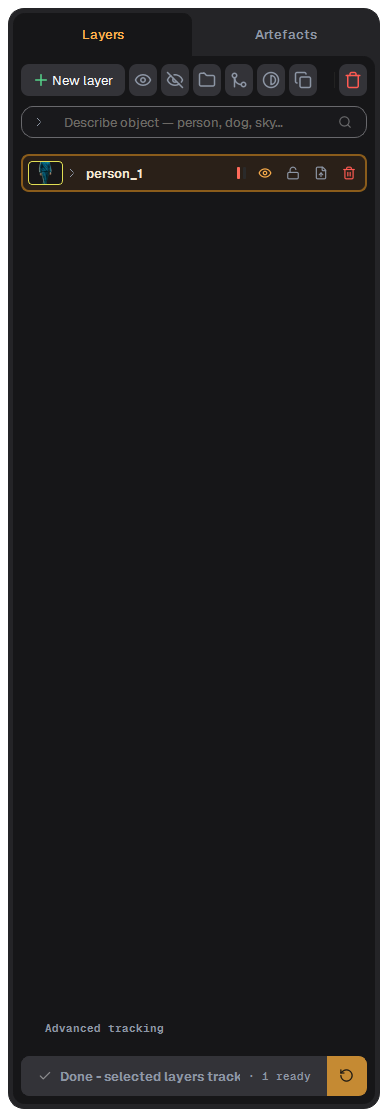
The field Describe object — person, dog, sky… finds objects by text.
Track all layers at the bottom, with the re-track button beside it. See Track.
Viewer
The viewer toolbar
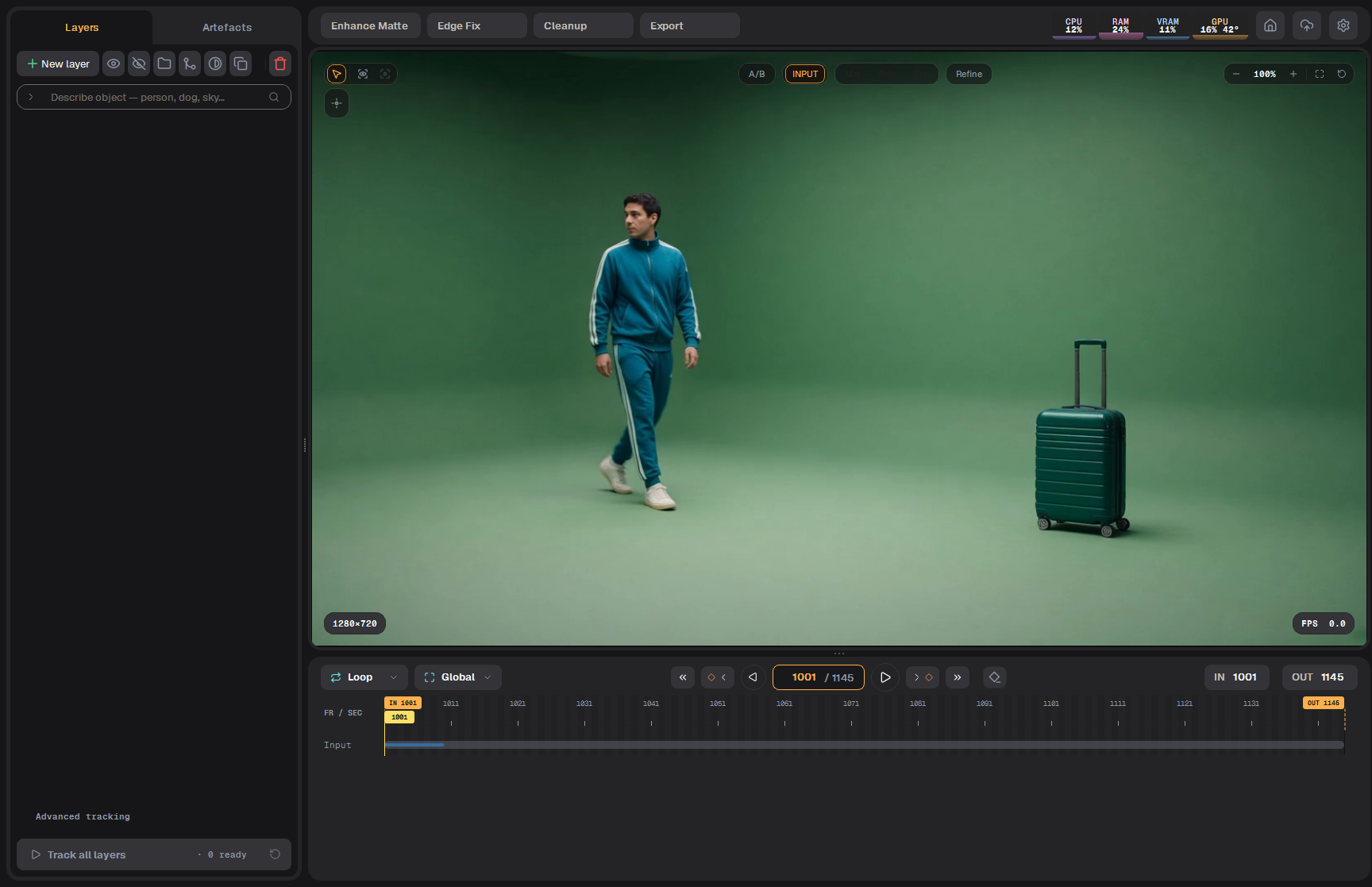
On the left are the tools (cursor, prompts, overlays). On top: A/B, INPUT / HARD / SOFT, Mat / Solo / Pre, Refine, and the zoom on the right. The badges in the bottom corners show the plate size and the playback rate. See Viewer and view modes.
Timeline
The timeline
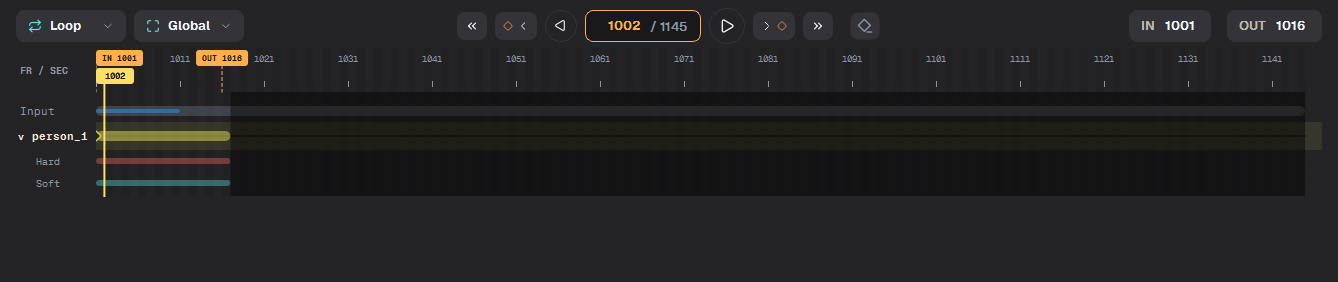
Playback mode, timeline fit, the transport buttons, the current frame, SET IN / SET OUT and the frame ruler. See Timeline and playback.
Stage drawer
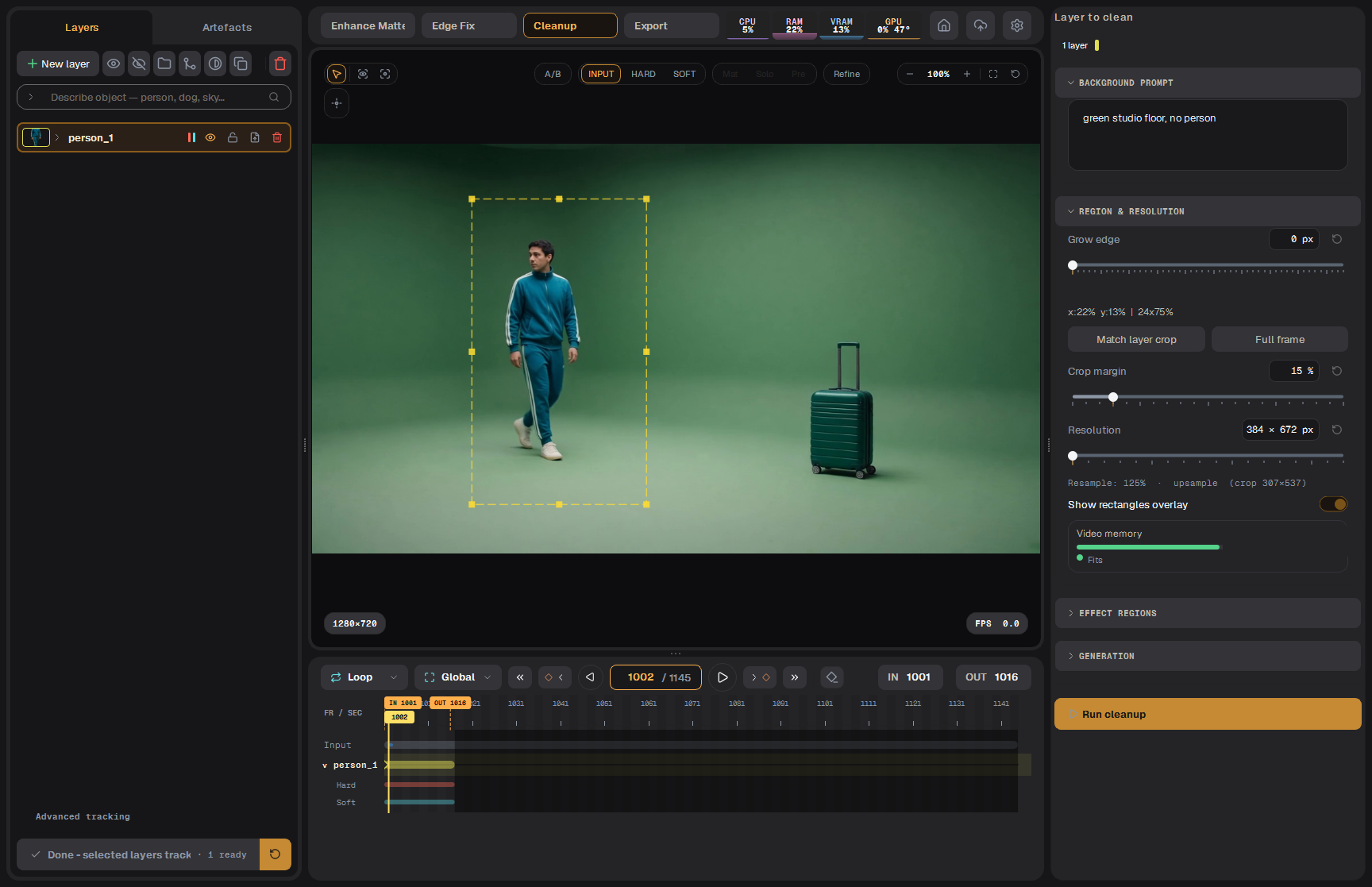
Each stage opens its settings in a panel on the right. The panel and the Objects panel are docks: drag the title bar to move them, double-click it or press the small button at its right end to float the panel as a separate window.
The Cleanup stage drawer open on the right
Tip On two monitors, float the drawer onto the second screen and keep the viewer large.
Рабочее окно
Обзор главного окна. Когда проект открыт, вся работа идёт в одном окне из четырёх зон.
Рабочее пространство
Четыре зоны
Верхняя панель: кнопка Home, имя клипа, кнопки этапов, индикаторы, очередь задач и настройки.
Панель Objects (слева): слои клипа и, на второй вкладке, результаты cleanup. Внизу кнопка Track.
Вьюер (в центре): картинка, слева от неё инструменты, сверху кнопки вида.
Таймлайн (внизу): воспроизведение, текущий кадр, диапазон IN/OUT и ключи.
Верхняя панель
Верхняя панель
Home (домик) возвращает на главный экран. Проект сохраняется.
Путь: проект / клип. Значок папки открывает папку клипа в Проводнике.
Поле Describe object — person, dog, sky… ищет объекты по тексту.
Внизу Track all layers и рядом кнопка повторного трекинга. См. Трекинг.
Вьюер
Панель инструментов вьюера
Слева инструменты (курсор, подсказки, оверлеи). Сверху: A/B, INPUT / HARD / SOFT, Mat / Solo / Pre, Refine и справа зум. Плашки в нижних углах показывают размер плейта и скорость воспроизведения. См. Вьюер и режимы просмотра.
Таймлайн
Таймлайн
Режим воспроизведения, масштаб таймлайна, кнопки транспорта, текущий кадр, SET IN / SET OUT и линейка кадров. См. Таймлайн и воспроизведение.
Панель этапа
Каждый этап открывает свои настройки в панели справа. Эта панель и панель Objects — доки: тащите за заголовок, чтобы переместить; двойной щелчок по заголовку или маленькая кнопка на его правом конце делает панель отдельным окном.
Панель этапа Cleanup открыта справа
Совет На двух мониторах вынесите панель этапа на второй экран, а вьюер оставьте большим.